
If you run a WordPress site, you’ve probably seen the word “hack” pop up in your inbox. What most people don’t realize is this: many WordPress compromises don’t start with a “smart hacker.” They start with boring stuff—stale plugins, weak passwords, and exposed admin panels. The scary part is how common these moves are.
In 2026, the most effective way to protect your site is to understand the exact Website Security Threats Explained that target WordPress. Then you can stop the chain before attackers get in. From brute-force login attempts to plugin supply-chain risk, the attack paths are clearer than you think.
What “common attack vectors” really mean for WordPress
An attack vector is the path an attacker uses to get from “outside your site” to “inside your site.” For WordPress, most attacks fall into a few repeat patterns. Once you learn them, you can spot weak spots in minutes.
In my work doing WordPress malware cleanup, I’ve noticed the same pattern over and over: attackers pick one entry point, then they either add a backdoor or they quietly change site files to run harmful code later. That’s why you can’t just “remove the malware.” You also have to remove the reason it worked in the first place.
Quick definitions you can use when checking your logs
- Brute force: guessing usernames and passwords until it works.
- Credential stuffing: trying leaked passwords from other sites on your WordPress login.
- Exploit: abusing a bug in a plugin, theme, or WordPress core.
- Backdoor: hidden access that lets the attacker return even after you “clean” the files.
- Web shell: a file that helps an attacker run commands on your server.
Top website security threats: the WordPress entry points attackers target
Most WordPress hacks start at a small set of entry points. If you watch these areas closely, you cut your risk fast.
1) Login attacks: brute force and credential stuffing
Login attacks are the #1 “loud” threat. You’ll often see tons of failed logins from the same IP range. Then, if a guess works, attackers may create an admin account or change your password.
As of 2026, credential stuffing is a big deal because people reuse passwords. A leaked password from a random forum gets sprayed across thousands of sites. WordPress is an easy target because the login URL is predictable: /wp-login.php and /wp-admin/.
What most people get wrong: they think changing the WordPress admin username is enough. It isn’t. If your password is reused, attackers still get in.
Action steps (do these today):
- Turn on two-factor authentication (2FA) for all admin users.
- Use a strong password manager password (20+ characters, random).
- Rate-limit login attempts at your firewall or hosting layer.
- Review user accounts and remove anything you don’t recognize.
2) Weak or outdated plugins and themes
Plugin and theme vulnerabilities are where many real-world compromises begin. WordPress itself gets patched often, but third-party plugins can lag behind. One weak plugin can be the “door” attackers walk through.
In several cleanups I’ve handled, the initial compromise came from an old plugin that had not been updated in 18–24 months. The plugin might still work, but attackers don’t care if it “still looks fine.” They care if it has a known bug.
Action steps:
- Remove plugins you don’t use. Inactive doesn’t always mean safe.
- Update plugins and themes immediately after security releases.
- Prefer plugins with active support, regular releases, and clear version notes.
- Before installing a new plugin, check reviews for security complaints.
If you want a practical approach, our post on WordPress hardening tips goes step-by-step through the settings that matter most.
3) Theme file changes and “malware by design”
When attackers change your theme files, it can look like normal site edits. They might inject code into functions.php, header.php, or footer.php. Then the code runs only for certain browsers or certain IPs.
Here’s an insight I’ve learned the hard way: the “damage” might not show up on your admin view. Attackers can hide their changes from logged-in admins, so you think your cleanup worked while visitors still get redirected.
What to check after an incident:
- Compare theme files against a clean copy from the official theme source.
- Look for strange PHP blocks, base64 strings, and long encoded lines.
- Check file timestamps and file size changes.
Exploit paths: how attackers turn bugs into full site takeovers
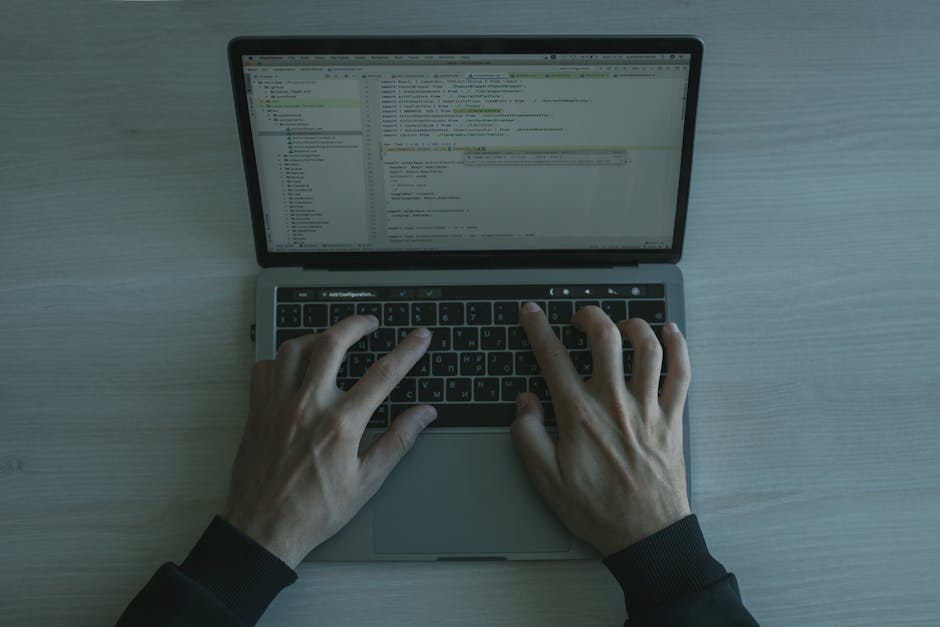
Exploits are what turn a “small mistake” into a full hack. Once an attacker can run code on your server, your site can be defaced, used to send spam, or used to spread malware.
4) Server-side vulnerabilities (not just WordPress)
People focus only on WordPress. But WordPress runs on a server with its own software. If your hosting stack has weak settings, attackers may find a route even if WordPress is up to date.
Common server-side issues include risky file permissions, outdated PHP versions, and misconfigured access controls. On shared hosting, one bad neighbor can also create risk if the host is slow to patch.
Action steps:
- Keep PHP updated (your host usually shows recommended versions).
- Use least-privilege permissions for files and directories.
- Check that your wp-config.php isn’t world-readable.
- Use a web application firewall (WAF) if your host offers it.
5) Cross-site scripting (XSS) and session theft
XSS is when attackers inject code into a page so visitors’ browsers run it. If your site accepts user input (like comments, forms, or search), XSS becomes a real threat.
If attackers steal a session token, they can log in as a real user without guessing the password. That’s how a site can get “hacked” even if brute-force attacks fail.
Action steps:
- Use input sanitization and output escaping in custom code.
- Limit who can post untrusted content.
- Review form plugins for update history.
6) SQL injection: when database lines get exposed
SQL injection is the kind of bug that lets an attacker trick your site into running wrong database commands. It can lead to stolen data, broken pages, or even a full admin takeover depending on the setup.
This usually shows up in custom plugins or custom theme code. It’s less common in well-maintained plugins but still happens.
Action steps:
- Avoid custom code that builds SQL queries from user input.
- Use prepared statements in custom development.
- Audit any custom plugin you didn’t write yourself.
Malware distribution threats: what happens after attackers get in
Once attackers access your WordPress site, their next move often isn’t just vandalism. It’s profit, spam, or control.
7) Redirect hacks and “SEO poisoning”
Redirect hacks send visitors to another site. Sometimes it’s a fake login page. Sometimes it’s a casino, a pharmacy, or a page filled with spam links. Search engines may also see different content than visitors, which hurts rankings fast.
I’ve seen cases where the homepage looked fine, but category pages redirected after 2–5 seconds. That delay is a trick: it can slip past casual testing.
Action steps:
- Test pages from an incognito browser and a phone on mobile data.
- Check Google Search Console for “hacked” or redirect warnings.
- Look at the server logs for 301/302 redirects to strange domains.
8) Spam campaigns via compromised WordPress forms
Some attackers don’t deface the site at all. They use it as a spam relay by sending emails or abusing contact forms. If your form plugin has a weak spam filter, it becomes an open door.
You might notice it as “Why are we getting hundreds of spam emails?” or “Why are our inboxes blocked by deliverability tools?”
Action steps:
- Turn on reCAPTCHA or a modern challenge method for public forms.
- Block suspicious IPs and use rate limits.
- Review mail logs and stop any PHP mail abuse patterns.
9) SEO keyword stuffing and injected links
Keyword stuffing is when attackers add hidden text and spam links inside your pages. Often it’s white text on white backgrounds, or it appears only to certain crawlers.
It’s not always easy to spot because the front-end HTML might look “almost normal.” But the underlying code is a mess.
Action steps:
- Use a clean comparison: fetch page source and compare it to a cached copy from before.
- Scan for strange hidden classes, long comment blocks, and odd iframes.
- Check for new admin users and new scheduled tasks.
People Also Ask: WordPress security threats and prevention
Here are the questions small business owners ask me most. I’ll answer them in plain language.
How do WordPress websites get hacked in the first place?
Most WordPress websites get hacked through account access, not magic. Attackers either guess a password, steal a session, or exploit a weak plugin/theme bug. After that, they usually add a backdoor so they can return later.
In 2026, the fastest-growing pattern I see is credential stuffing combined with weak 2FA. People set a strong password once, then they reuse it across other accounts. Attackers get it from a breach and try it on WordPress.
What are the signs my WordPress site is compromised?
Common signs include sudden traffic drops, unexpected redirects, strange admin accounts, new files you didn’t upload, and errors on the site.
More specific signs I look for during cleanup:
- New PHP files in unexpected folders like /wp-content/uploads/ or random names in root directories.
- Base64 or hex encoded blocks inside theme files.
- Scheduled events added in WordPress cron.
- New admin users with emails you don’t recognize.
If you’re seeing any of these, stop making random edits. Backdoors can stay hidden while you change the obvious files.
Can a malware cleanup remove the infection completely?
It can, but only if the cleanup also fixes the entry point. If the attacker used a vulnerable plugin, then removing injected files alone won’t stop the next breach. You need a “root cause” check: accounts, vulnerabilities, scheduled tasks, and modified files.
This is why our approach ties together malware removal and hack recovery guides with hardening and monitoring steps.
Does changing my WordPress password fix hacking?
Changing the password helps only if the attacker didn’t already install a backdoor or take over your session via a vulnerability. I’ve cleaned sites where the owner changed passwords three times and still got reinfected within 24–72 hours.
If reinfection happens quickly, assume there’s an entry point still open.
Is WordPress security plugins enough?
They help, but they’re not a full solution. A security plugin can block some attacks, but if you have a vulnerable plugin or a compromised admin account, you still need incident steps and file checks.
Think of security plugins as guardrails, not a seatbelt replacement.
Real-world incident patterns: what compromised sites look like in 2026
I’ve worked on enough incidents to know the “story arc” most hacks follow. Here are three patterns I keep seeing, with the fixes that actually worked.
Case pattern A: the “quiet backdoor” after a plugin vulnerability
In one cleanup, the site had an outdated plugin that was removed within hours of the client contacting us. The site was back online—but suspicious redirects came back two days later.
After we dug deeper, we found a backdoor file dropped with a name that looked like a cache folder. It only ran when a certain user agent was detected.
What we did:
- Reinstalled WordPress core files from a trusted source.
- Removed the backdoor and replaced theme files.
- Updated plugins and changed all passwords.
- Locked down file upload permissions.
Case pattern B: brute force succeeds, then admins are added
Another case involved hundreds of failed login attempts from a small set of IPs. One attempt succeeded at 2:14 AM. The next day, there were new admin accounts and a scheduled task that posted spam drafts.
What made it tricky: the site owner didn’t notice the new accounts for several hours because the dashboard “looked normal.”
Fix: reset credentials, remove unknown accounts, check scheduled actions, then scan for changes in database tables tied to user and cron events.
Case pattern C: SEO poisoning that only shows up to Google
Some attacks are crawler-focused. They serve spam links or hidden content to certain bots, while normal visitors see a clean page.
In that scenario, you need to test with different user agents and check Search Console. Also, you should fetch the page source and compare it to a known-good backup.
How to stop WordPress attack vectors: a practical 30-day plan

If you want fewer hacks, you need a plan you’ll actually follow. Here’s a simple 30-day checklist that covers the biggest website security threats.
Days 1–7: close the obvious doors
- Enable 2FA for every user with admin or editor roles.
- Update WordPress core, plugins, and themes.
- Remove unused plugins and themes.
- Review users: delete accounts you don’t recognize.
If you don’t know what to update first, start with anything that has admin access or touches forms and logins.
Days 8–14: reduce attack success
- Turn on rate limiting for login attempts.
- Use a WAF or firewall rules at your host.
- Set strong file permissions and disable directory browsing.
- Restrict wp-admin access if your business doesn’t need it globally.
Days 15–21: detect changes early
- Enable file integrity monitoring (FIM) if your hosting supports it.
- Set up alerts for new admin users and changed core files.
- Review server logs weekly (failed logins, 404 spikes, odd POST requests).
My rule: if you can’t check logs, you need alerts that do it for you. Otherwise, you’ll only find out after search engines do.
Days 22–30: prepare for recovery before you need it
- Make a clean backup and test restore (don’t just “save” it).
- Write down your incident steps: who to call, where backups live, how to contact hosting.
- If you sell online, set a downtime plan so you can communicate fast.
This belongs with your site maintenance work. If you want a schedule idea, check our website maintenance checklist so security updates don’t get pushed aside.
WordPress security hardening: what to configure (and what people skip)
Hardening is not about locking everything down so much that your site breaks. It’s about reducing the chances an attacker can use common mistakes.
Core settings that matter
| Area | Risk if ignored | What to do |
|---|---|---|
| Admin accounts | Stolen credentials and backdoor setup | 2FA + remove unknown users + strong passwords |
| Plugins & themes | Known bugs turn into exploit entry points | Update fast + remove unused + audit new installs |
| File permissions | Attackers upload web shells or modify files | Least privilege + lock down upload access |
| Monitoring | Attacks run for days before you notice | FIM/alerts + weekly log review |
| Backups | Recovery takes days, not hours | Automated backups + tested restores |
What most people skip: file upload protection
A huge number of compromises involve uploading a malicious file. Even if you don’t see it, attackers may drop files into places like uploads directories.
For hardening, set rules so only approved users can upload. Also consider limiting what file types you allow in uploads. If your site doesn’t need PDFs or SVGs, don’t allow them.
Backups you can trust (how to test in real life)
A backup that never gets tested is a promise you can’t cash. In 2026, I recommend testing restore every 30–60 days, or after major site changes.
Test it like this: restore to a staging environment, verify key pages load, confirm forms work, and check that admin access still behaves normally.
What to do if you think your site is already compromised
If you suspect a compromise, don’t panic-edit everything. Follow a calm process. In my experience, the first 60 minutes matter.
Step-by-step: hack recovery for WordPress
- Isolate the site: put the site in maintenance mode or restrict access so attackers can’t keep changing files.
- Block suspicious IPs if you see clear sources in your logs.
- Change passwords only after you remove obvious backdoors or at least while you’re preparing a re-check.
- Reinstall core WordPress files from a trusted source (not from your old backup).
- Scan plugins, themes, and uploads for unexpected files and encoded code.
- Check the database for new admin users, odd scheduled events, and modified content.
- Submit for review in Search Console if Google flags the site.
If you want a guide that matches real recovery work, review our malware removal resources and recovery steps for compromised WordPress sites.
When you should get help fast
Get help quickly if you see redirects, search engine warnings, or repeated reinfections within 1–3 days. Those patterns usually mean a backdoor or a still-open vulnerability.
If your hosting account shows new admin panels or strange scheduled tasks, assume the problem is bigger than a few files.
Featured image recommendation (for your WordPress blog post)
Image alt text: “Website security threats explained—common attack vectors targeting WordPress login and plugin vulnerabilities”
Conclusion: your best defense is knowing the attack path
Here’s the takeaway: most WordPress attacks follow predictable routes. Website security threats explained in real life usually start with login abuse, outdated plugins, or modified theme files. Then attackers add a backdoor so the site gets reinfected even after you clean it once.
If you do only one thing, do this: tighten logins (2FA + rate limiting) and keep plugins updated. After that, add monitoring and test your backups. That combo is what turns a painful hack recovery into a short, controlled restore.
If you’re dealing with an active issue, reach out for a cleanup plan. If you’re not hacked yet, use the 30-day checklist above and treat security like maintenance—because attackers do.