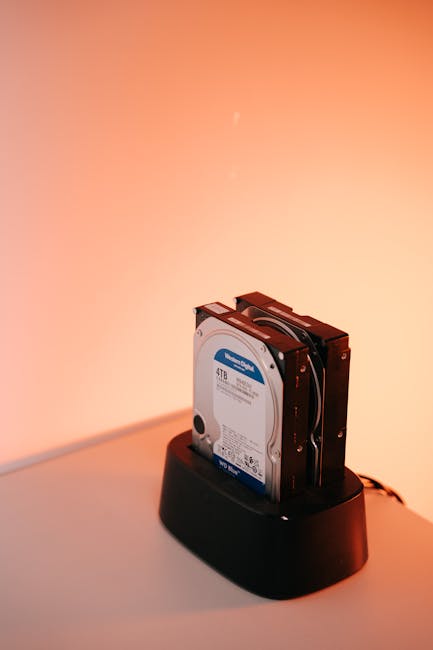
Here’s a painful truth I’ve seen more times than I’d like: backups that look “done” usually aren’t backups that actually work. During a malware cleanup, one client once told me, “We tested the backups last year.” When we tried restoring, the database dump was corrupted and the site wouldn’t come back. We didn’t lose just time—we lost trust in the process.
A good website backups that actually work plan doesn’t stop at taking snapshots. It proves you can restore the right files and the right database, fast enough to meet real business needs. In 2026, the bar is higher because attacks are faster, and hosting setups are more complex than they used to be.
Website backups that actually work start with proof, not promises
Backup testing is the part most small businesses skip because it feels boring. But it’s the only way to know the backup is readable and complete. A backup is not “working” until you restore it in a safe test environment and verify key pages load.
In plain terms, a backup is a package of your site files (WordPress core, themes, plugins, uploads) plus your database (posts, pages, settings). If either part is wrong, your restore fails. Even worse, the restore can “work” but bring back the hacked content too.
When I set up backup routines for clients, I use a simple rule: if you can’t restore it, you don’t have a backup. This ties directly to the categories we see in the real world—WordPress Security issues, Malware Removal cleanups, and Website Maintenance habits.
Backup testing: the 3 checks that catch 90% of failures

Test your backups in three layers: file integrity, database integrity, and a real “smoke test” for WordPress. If you only do one of these, you’re still guessing.
Most people also test on a random day with no pressure. That’s fine for catching broken archives. It’s not fine for proving you can recover quickly during a real threat alert.
1) File integrity check (can you read the backup?)
This is the easiest win. If your backup tool stores archives, verify they aren’t zero bytes and aren’t missing big chunks. For example, if your uploads folder usually lands around 2–8 GB, a “backup” that suddenly weighs 200 MB is a red flag.
What to do:
- Pick one backup per week and open it like a normal archive.
- Look for expected folders: wp-content and uploads.
- If the backup includes a manifest or checksum file, confirm it matches.
Tool names you’ll hear in the WordPress world: UpdraftPlus, WPvivid, and managed backup systems from hosts. No matter which one you use, the goal is the same: confirm the backup isn’t broken before it matters.
2) Database integrity check (does the SQL dump restore?)
Database problems are the biggest reason restores fail. A backup might contain all files, but if the database export is truncated, you’ll restore a blank shell of a site.
What to do:
- Create a temporary staging database on your test server or local environment.
- Import the database dump from the backup.
- Run a quick table check (for example: does
wp_postscontain rows?).
I’ve seen truncated SQL dumps happen after a hosting timeout or a disk space issue. In one cleanup job in 2025, the client’s backup runs were silently failing at midnight because storage hit 100%. The restore “worked” only on a few older backups.
3) WordPress smoke test (does the site behave?)
This is where you stop thinking like a backup technician and start thinking like a business owner. The question isn’t “did it import?” The question is “did it bring back a usable WordPress site?”
Do a quick check in under 15 minutes:
- Log into WordPress admin in the restored copy.
- Open the homepage and one inner page.
- Check that media loads (images show, not broken links).
- Confirm key plugins are active (or at least not crashing).
If you use a security plugin (like Wordfence), check the scan status too. A restore should not automatically reintroduce the exact same malware process you just removed.
Restoration drills: practice the recovery before you need it
Restoration drills are timed practice runs where you restore a backup exactly the way you’d do during an incident. This is the difference between “we have backups” and “we recover fast.”
In my work, I aim for drills that take less than one hour. If your drill takes all day, it’s too complex for an actual emergency.
Also, drills should be realistic. If your hosting uses a control panel workflow, your drill should use that same workflow. Don’t switch to a different method just for testing.
The drill schedule that works for most small business sites
Here’s a practical schedule for 2026. Adjust it up if your site changes daily.
- Monthly drill: Restore to staging and run a smoke test.
- Quarterly full drill: Practice restoring from scratch (files + database) to a fresh environment.
- After major changes: Run a test immediately after a plugin update, theme change, or hosting migration.
Why monthly and quarterly? Because WordPress changes often, but you don’t want to drain your week every time. The goal is to keep the process fresh.
What you should time during a drill (real numbers)
Time matters during a hack recovery. For each drill, track:
- Backup retrieval time: how long it takes to download or access the backup set.
- Restore time: how long files and database take to restore.
- Verification time: how long it takes to confirm the site loads and login works.
- Rollback readiness: whether you know what version to revert to.
A healthy target for many setups is under 60–90 minutes for a staging restore, depending on backup size and server speed. Production restores can be faster if you have a “one-click” host backup system, but you should still practice the steps.
Staging vs production drills: when each one matters
Staging drills protect you from accidents. You test without touching the live site. This is where most monthly checks should happen.
Production drills are different. You’re not replacing your entire site every month. But you should still test your ability to switch quickly. If your provider offers a “restore to previous snapshot” workflow, practice it in a controlled way—maybe during a low-traffic time and on a test domain copy.
One limitation: if your hosting doesn’t allow staging databases or easy cloning, you might have to use local WordPress and database tools for practice. That’s still useful. Just don’t skip it.
Rollback strategy: how you go back without making things worse

A rollback strategy is your plan for reversing changes after a hack, a bad plugin update, or an incomplete cleanup. Rollback is not just “restore the most recent backup.” It’s “restore to the last known good state.”
The trick is that recent backups can be contaminated. Malware often sits inside theme files, plugin files, or even database rows. If your last backup was taken after the hack started, restoring it just brings the problem back.
Define “last known good” (not “latest backup”)
Last known good is the backup that you confirm is clean enough to run the site. For a real incident, you decide this based on evidence, not guesses.
When we investigate compromised sites, we look at:
- When the suspicious changes started (first abnormal file timestamp, first infection log entry).
- Which files changed (especially in
/wp-content). - Database indicators (new admin users, suspicious scheduled posts, SEO spam links).
Then we match that timeline to backups. If the hack happened on a Tuesday morning, don’t restore the Tuesday evening backup. Go back to the Monday night backup you can prove didn’t include the changes.
Rollback levels: database-only, file-only, and full restore
Not every situation requires a full full-site restore. A smart rollback plan gives you options.
| Rollback Level | Best For | Typical Impact | Risk If Chosen Wrong |
|---|---|---|---|
| Database-only rollback | Spam content added, settings changed, bad form submissions | Restores posts/users/settings | Malicious files still run |
| Files-only rollback | Theme/plugin file tampering, injected scripts | Restores core/theme/plugin code | Malicious database changes still exist |
| Full rollback (files + database) | Unknown infection path or repeated re-infection | Highest confidence | May roll back useful updates |
My opinion: if you’re dealing with a confirmed infection and you don’t have strong evidence, go full restore to last known good and then re-check. That approach saves time in the long run, even if it costs a bit of time upfront.
Pair rollback with “content quarantine” for faster cleanup
Here’s an original angle I use a lot: treat risky items like quarantined evidence, not “stuff you delete immediately.” When we recover a hacked site, we often preserve:
- The infected
wp-contentfiles snapshot - The suspicious plugin/theme versions
- A dump of the database tables that got changed
That means if the site comes back with weird behavior, we can compare quickly instead of starting from scratch. It also helps when you need a clean explanation for the client: “Here’s what changed and when.”
What most people get wrong about WordPress backup plans
Most backup failures are human mistakes, not tool failures. People set a schedule and assume it’s enough.
Here are the big mistakes I see:
- No restore test: They never import the database or open the staging site.
- Backups are too new: All backups start after the hack begins.
- Not enough retention: They keep backups for 7 days, but the infection lasts 3 weeks.
- Only files or only database: Someone thinks “uploads are enough.” They aren’t.
- Wrong environment: Staging restore fails because of PHP version differences or missing extensions.
If you want a quick check, ask yourself: “Could I restore this site if the hosting account was locked out?” If the answer is no, your backup plan depends too much on one system.
People Also Ask: backup testing and restoration drills
How often should you test WordPress backups?
You should test WordPress backups at least monthly with a staging restore and smoke test. Do a more serious drill quarterly where you practice the whole restore process on a fresh environment.
If you run frequent updates (daily posts, WooCommerce order changes, heavy plugin changes), test after major changes and keep retention longer so you have a clean rollback point.
What’s the fastest way to restore a WordPress site after malware?
The fastest approach is restoring to the last known good backup and verifying quickly that the site is clean enough to serve traffic. Don’t spend hours trying to “repair” infection if the restore point is known good.
In practice, we restore (files + database) first, then we remove the cause: forced password resets, plugin/theme cleanup, and closing the entry point.
Should I restore before or after changing passwords?
Restore first only when you’re sure the backup is clean. If you’re restoring to a backup you suspect is contaminated, don’t skip the security steps. For most cleanups, we restore to last known good, then reset all admin passwords, rotate API keys, and confirm no new admin users exist.
If you already have confirmed evidence of compromise, treat password resets as part of the recovery, not an afterthought.
How long should backup retention be for a hacked site?
For many small sites, 30–90 days of retention is a strong baseline if your budget allows. Malware discovery doesn’t happen instantly. If you find an issue weeks later, you need backup points from before the infection started.
At minimum, keep enough retention to cover the time between “hack likely started” and “hack discovered.” For some businesses, that window is longer than they expect.
Operational checklist: your backup system should run like a system
Use a checklist so backups don’t rely on one person remembering what to do. This list is also handy when you hand off work to a security team.
Weekly (small effort, big value)
- Confirm backup job runs without errors.
- Open one recent backup and confirm file size looks normal.
- Check storage usage (remote backup targets fill up).
Monthly (staging restore + verification)
- Restore to a staging environment.
- Import database successfully.
- Login to admin and load homepage + one inner page.
- Verify key plugins load without fatal errors.
Quarterly (full drill + rollback review)
- Do a full restore to a fresh environment (not a reused staging copy).
- Time the restore steps and write down the numbers.
- Update your rollback decision rules (what “last known good” means for your site).
- Review your retention settings and whether they match your risk.
Recommended tools and setup patterns (what I see work in 2026)
The right tools matter, but the setup matters more. I’ve seen premium backup plugins fail because the database credentials weren’t correct or the storage target filled up. Below are common patterns that work well for WordPress sites.
Backup locations: remote first, local second
Best practice is to store backups off-site so a server compromise doesn’t wipe your recovery options. In 2026, most teams use cloud storage targets like S3-compatible storage, or remote backup options built into host platforms.
Local backups are fine as a second layer, but remote backups are your safety net.
Pair backups with file change monitoring
Backups tell you where you are after the fact. File change monitoring tells you early. A simple approach is setting up alerts for changes in wp-content and for new admin users.
This doesn’t replace security scans, but it helps you pick the right rollback point with less guessing.
If you want more practical security context, you’ll also benefit from our guides on WordPress Security and cleanup workflows under Malware Removal.
A quick real-world scenario: when backups saved the day (and when they didn’t)
One client’s site got hit by SEO spam injections. They were sure their backups would fix it because the backup tool showed “success.” But during the restore, we discovered the latest backup had already captured the infected theme files. The site came back, and within minutes, the same spam script executed again.
What fixed it was not “restoring again.” It was restoring from a backup point before the file timestamps changed, then doing a full file integrity check and cleaning the entry point. After that, the backups started to work the way they were supposed to—recovery plus prevention.
This is why I’m strict about restoration drills. You don’t get to find out the backup is contaminated during a crisis. You find it out during testing.
Conclusion: your goal isn’t backups—it’s recoverability
Website backups that actually work are backups that you can restore, verify, and roll back from without drama. Set a monthly staging restore test, run timed restoration drills quarterly, and write down a rollback strategy based on “last known good,” not “latest backup.”
If you do that, you’ll stop treating malware recovery like a guessing game. And if something goes wrong, you’ll have a clear path back to a working site—fast enough that your customers never have to feel the outage.
Action takeaway for today: Pick your most recent backup file, schedule a staging restore, and document how long it takes end-to-end. If you can’t do that today, your backup plan needs testing more than it needs new features.
Image SEO: Featured image alt text suggestion: Website backups that actually work—restoration drill staging screen showing WordPress backup restore