
Why WordPress login attacks work (and how to stop them fast)
Most WordPress account takeovers start with one boring thing: guessing passwords. Attackers don’t need your website files if they can log in as a real user.
In 2026, the common pattern is still the same: repeated login attempts, stolen admin credentials from old leaks, and bots that look for “who has what username.” If you harden authentication, you cut off the biggest door first.
Quick direct answer: To secure your login like a pro, use strong passwords + 2FA, lock down login attempts, hide or slow down user lookup, and make sure WordPress auth runs through secure, updated code.
Secure Your Login Like a Pro: Start with the basics that stop most takeovers
Before you add any plugin, fix the few things that almost always make login attacks easier. I’ve handled compromised sites where the “hack” was really weak passwords and old plugin configs.
1) Enforce strong passwords for every user, not just admins
WordPress stores password hashes safely, but weak passwords still fall to brute force. A good rule for small businesses is simple: require long passwords (at least 14 characters) for all roles that can edit content.
What most people get wrong: they only harden the admin account. Then a shop manager account gets guessed, and the attacker installs a plugin to keep access.
Practical step: if you use a user-friendly password manager, require everyone to use it. Even for a 5-person team, it’s a big upgrade in 1 day.
2) Turn on 2FA the right way (and test it)
Two-factor authentication (2FA) means you need a second proof, like a phone code or an authenticator app, not just your password.
In real incidents, 2FA is often there… but not enforced, or it’s turned on for only one user. In other words, the company “has 2FA” but the attacker only needs one weak account.
Practical step: set up 2FA for every user that can log in, then run a test login on a staging site or a test account. Check that backup codes work too. I’ve seen backup codes saved as screenshots on a desktop with no extra protection.
3) Limit who can log in by role, and remove dead accounts
Every extra user is another password to manage. If someone left the company, delete their account right away or at least lock it down.
At a minimum, review users quarterly. In 2026, many WordPress attacks are old credential issues. You can’t stop an old leak if you keep old accounts alive.
Stop brute force and credential stuffing with smart rate limits
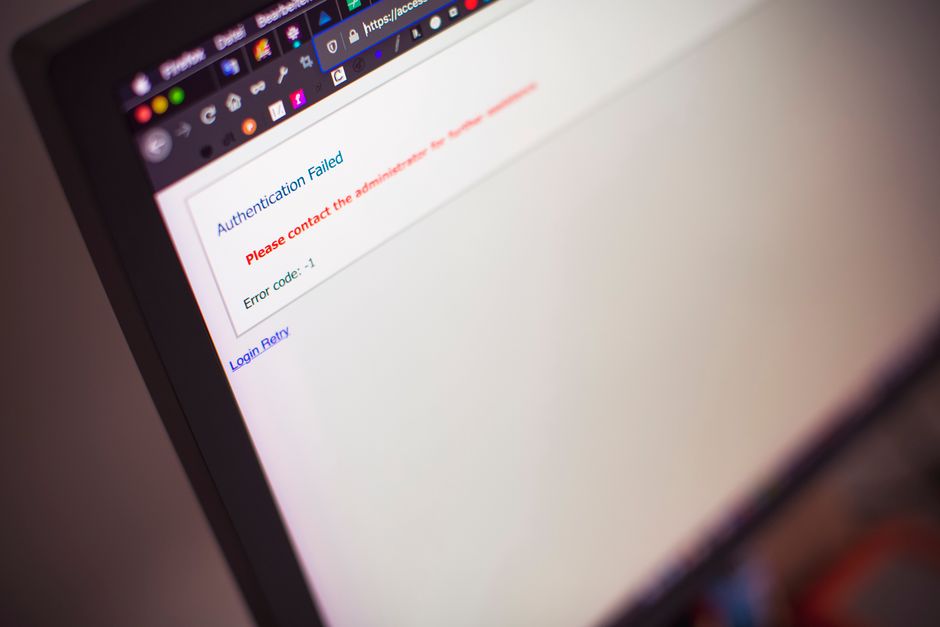
Brute force is repeated login attempts. Credential stuffing is repeated attempts using real leaked usernames and passwords.
Both attacks hit the same spots: wp-login.php, wp-admin, and REST endpoints that can trigger auth checks. Rate limiting means “slow down or block” after a number of failures.
What to implement: lockouts, delays, and bot filtering
Here’s what I recommend based on what I see work across small business WordPress sites.
- Lockout after 5–10 failed attempts from the same IP or session window.
- Add a short delay (for example, 20–60 seconds) instead of hard blocks if you get lots of false positives.
- Block known bad traffic patterns using your firewall or security plugin.
- Use a login endpoint rule that specifically protects wp-login.php.
Where rate limiting should happen
Best practice is to apply it as close to the server edge as you can. Many attacks never need to reach WordPress if your web server or CDN can slow them down.
If you’re using Cloudflare, you can add protection rules for login pages. If you’re using a security plugin, confirm it also protects the login form, not just “admin area.”
Important limitation: if your team includes remote staff or mobile ISPs with changing IPs, strict IP lockouts can accidentally block real logins. In that case, choose a shorter lockout and focus on 2FA.
Kill user enumeration: make usernames harder to guess

User enumeration is when attackers learn which usernames exist. Once they know “admin is real,” password guessing becomes much easier.
In WordPress, enumeration can happen when the login page responses differ for wrong usernames vs wrong passwords, or through subtle clues.
How WordPress authentication hardening prevents enumeration
Security hardening here means making responses look the same and not giving extra hints. You can also stop certain endpoints from revealing user data.
Practical steps I use during cleanups:
- Use a security plugin setting for “hide login errors” or “disable user enumeration.”
- Apply rate limits to both login and any authentication-related AJAX calls.
- Check REST API auth endpoints if your site uses headless front ends or apps.
My real-world angle: enumeration often shows up after small changes
Most sites don’t start vulnerable. The enumeration issue often appears after updates to themes, security plugins, or “login redirect” tweaks. If you recently installed a plugin that customizes login messages, double-check it doesn’t leak details.
During a recent remediation for a local service business, the “custom login” plugin made the error messages slightly different. That tiny change helped bots confirm valid usernames quickly. Removing it fixed the problem more than adding more rules.
Harden the WordPress login page (without breaking it)
The login page is where attackers aim. Hardening it doesn’t mean changing the UI so much that your staff gets confused. It means controlling access and reducing risky features.
Disable or restrict risky login behaviors
Here are specific settings that help with auth safety.
- Limit login attempts (covered above) and make sure it applies to both wp-login.php and wp-admin.
- Protect password reset: rate limit reset requests and block repeated reset attempts from the same IP.
- Stop direct access patterns that spam the login form with empty fields.
Turn off “remember me” options that keep sessions alive too long
WordPress has a “remember me” feature. If you leave sessions active for weeks, stolen cookies become a bigger problem.
Practical step: review session settings via your security plugin and your server. Shorten persistent login life when possible, especially if multiple people share a device.
Note: don’t break convenience for customers in a shop that needs lots of staff logins. Just shorten the longest session length and keep 2FA as the real guard.
Use SSL/TLS everywhere (and confirm it)
Authentication data should never travel unencrypted. If you run mixed content or misconfigured HTTPS, session cookies can be stolen more easily.
Check your browser and server settings. In 2026, it’s normal to enforce HTTPS with redirects and HSTS (HTTP Strict Transport Security). If you don’t know HSTS, it’s a browser rule that forces HTTPS. It’s safe for most sites, but only enable it after your HTTPS setup is clean.
Secure passwords, cookies, and sessions: the part people forget
Even with a strong password policy, login attacks can still succeed if sessions are sloppy. That’s why cookie and session hardening matters.
Set secure cookie flags (HttpOnly, Secure, SameSite)
Cookie flags are browser rules that protect how cookies are sent. The three big ones you want are:
- Secure: cookies only send over HTTPS.
- HttpOnly: scripts can’t read cookie values.
- SameSite: reduces risk from cross-site requests.
If your hosting stack already handles this, great. If not, your security plugin or server config should set them.
Shorten idle session time and rotate sessions after changes
Session timeouts reduce the window for a stolen cookie. If your hosting has a long default session, tighten it through your security plugin settings.
Also rotate sessions when there’s a major event: password change, role change, or after you recover from a suspected intrusion. I’ve seen attackers keep access for months by leaving old sessions open.
Watch for admin-ajax and REST endpoints
Attackers test endpoints that support features like search, forms, and app logins. Even if wp-login.php is protected, a weak endpoint can still leak user data or allow auth probing.
Good hardening includes checking that your security layer covers authentication checks across endpoints, not only the main login form.
Use WordPress security plugins correctly (configuration matters more than the brand)
Security plugins can help a lot, but only when configured for authentication hardening. I’ve seen sites install two security plugins and accidentally disable useful rules.
A simple setup checklist I follow in 2026
- Enable 2FA enforcement for all relevant roles.
- Turn on login rate limiting for wp-login.php and wp-admin.
- Enable user enumeration protections and “hide error messages.”
- Protect password reset and add reset attempt limits.
- Log suspicious events and make sure alerts go to a real email.
Then test it: attempt a few wrong logins, request a password reset repeatedly from a different IP (or a test network), and confirm the expected behavior happens.
Pros/cons: edge firewall vs WordPress plugin rules
| Approach | Pros | Cons |
|---|---|---|
| CDN / edge firewall rules (e.g., Cloudflare) | Blocks bots before they hit WordPress; saves server load | May block legit logins if rules are too strict |
| WordPress plugin auth hardening | Knows WordPress flows; can add 2FA and user protections | Rules only work after requests reach WordPress |
| Both together | Best coverage: quick block + smart auth checks | More things to configure; test changes carefully |
If you have limited time, start with the plugin changes that enforce 2FA and rate limits. If you’re under heavy bot traffic, add edge protection too.
People Also Ask: WordPress authentication hardening questions
How do I stop brute force attacks on my WordPress login?
Stop brute force by adding rate limits to the login page and blocking repeated failures. Then enforce 2FA so even a guessed password won’t give access.
In practice, the fastest win is a plugin setting for “limit login attempts” plus a firewall rule for wp-login.php. Test by making a few incorrect login attempts and checking logs/alerts.
Should I rename wp-login.php to make it more secure?
No, not as your main security step. Renaming can slow some basic bots, but it’s not strong protection, and it adds maintenance headaches.
Most real attackers don’t care about the URL. They target authentication weaknesses (password reuse, leaked credentials, user enumeration) or look for alternate endpoints.
Does WordPress 2FA prevent all account takeovers?
2FA blocks many takeover attempts, but it doesn’t fix everything. If an attacker has your device, your email password, or your backup codes, they can still break in.
That’s why you should also secure your email account and turn on alerts for new logins. Email is often the “second door” to your WordPress resets.
How often should I review WordPress user access?
For small businesses, check user access every month if you have active hiring. If your team is stable, do it every 3 months. Also review immediately after anyone leaves.
I also recommend reviewing roles after major plugin updates, because some add new capabilities by default.
Case study style: what we fix after a suspected login compromise
When a site gets hacked, the first thing I look for is how the attacker got in. On compromised WordPress sites, the login path is usually the same story: weak auth controls and missing 2FA.
Scenario: “Admin account is compromised, but files look normal”
We’ve seen cases where wp-admin and plugin files weren’t changed much at first. The attacker used valid login access and created a new admin user or changed admin settings.
Hardening we applied:
- Forced 2FA for all users and removed any accounts created during the incident window.
- Rotated all active sessions (logged out everyone), then changed passwords for every user.
- Enabled strong login attempt limits and reset throttling.
- Checked for lingering backdoors and removed them during the malware cleanup phase.
Then we tightened monitoring so suspicious logins trigger alerts within minutes, not days.
Scenario: “Password reset abuse hit us first”
Some attacks don’t brute force the password. They spam the password reset form until your email system gets noisy and a reset slips through.
Fixes:
- Rate limit password reset requests.
- Verify your email provider doesn’t allow open reset abuse.
- Enable alerts for password change and new admin creation.
This is where authentication hardening and malware cleanup overlap, because compromised accounts often lead to malicious plugin installs.
Recovery-first mindset: hardening is most valuable after cleanup
If you suspect a compromise, don’t only “add protections.” Clean up first, then harden.
Our team often sees a pattern: owners add a security plugin after the fact, but they leave a malicious plugin or an admin account behind. Then the next login attack succeeds again.
What to do right now if you think your login is compromised
Here’s a direct plan you can follow today:
- Change WordPress passwords for every user immediately.
- Log out all sessions and rotate any active authentication tokens.
- Remove any new admin users you don’t recognize.
- Scan for malware and clean infected files/plugins.
- Install authentication hardening: 2FA + rate limiting + user enumeration protection.
- Check plugin/theme lists for anything recently installed or renamed.
If you want a deeper cleanup checklist, our readers often find these helpful: malware removal steps and website maintenance security checks.
Protect the login ecosystem: email, backups, and hosting settings
WordPress login security is more than WordPress. Attackers go after your reset emails, your backup process, and your hosting configuration.
Secure your email (because password resets go through it)
Most WordPress password resets send a link to your email. If your email is compromised, 2FA on WordPress won’t save you.
In 2026, I recommend using 2FA on your email provider too, and checking for forwarding rules attackers may add.
Backups should be safe, not just available
Backups help you recover after a hack. But if backups are also reachable by attackers or stored without protection, they become another risk.
Practical step: store backups in a separate location with access controls. When you clean up, verify you can restore and that the restored site keeps your hardening settings.
Apply updates, but plan them
Keeping WordPress core, themes, and plugins updated is part of authentication security. Old plugins sometimes add insecure auth features or weak login handlers.
Small business sites usually can update weekly. Use a staging environment if you can, so you don’t break a live checkout or a form login flow.
Actionable takeaway: a “pro” login setup you can implement this week
If you want one clear outcome, it’s this: fewer successful login attempts and faster detection when something goes wrong.
Here’s the exact hardening plan I’d roll out in a real small business timeline:
- Today: Turn on 2FA, enforce it for all users, and set strong passwords.
- This week: Enable login attempt limits and password reset throttling. Add user enumeration protections.
- This month: Review users, remove dead accounts, shorten session life, and verify cookie security flags.
- Ongoing: Monitor auth alerts and test your login page protections after every major change.
If you’re already dealing with suspicious logins or malware symptoms, start with cleanup and recovery, then apply these authentication hardening steps. For threat response guidance, you can also check our threat alerts posts to spot what’s common right now.
Secure Your Login like a pro by blocking the guess, hiding the clues, and strengthening the second proof. Do those three things well, and most WordPress takeovers won’t get a foothold in the first place.
Featured image alt text (for your CMS): Secure WordPress authentication hardening tips showing protected login form and 2FA setup