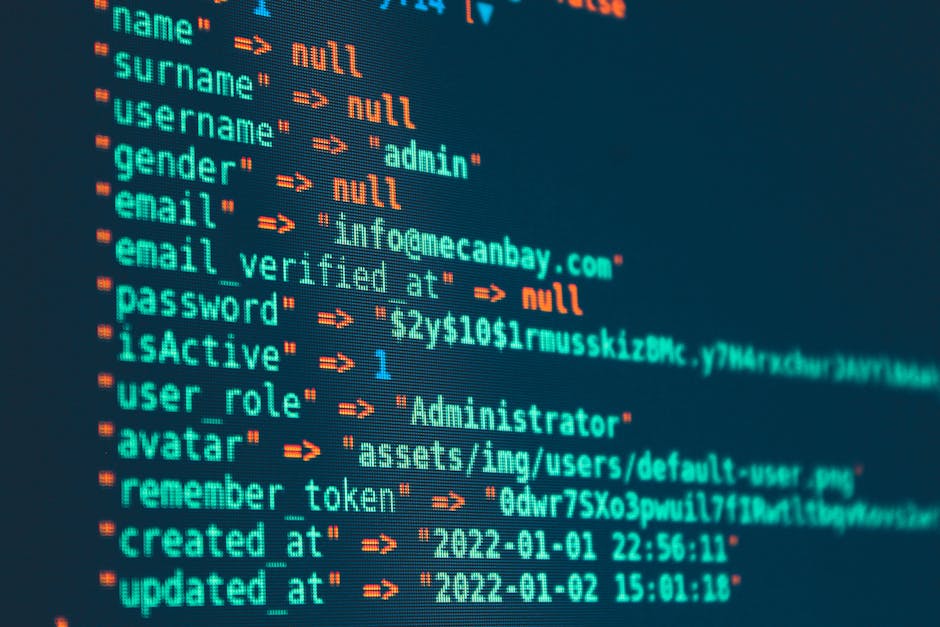
One of the most unsettling things I’ve seen during cleanups in 2026 isn’t a new admin account. It’s a quiet change inside the database that keeps working even after you update plugins.
The most common WordPress attack patterns I find don’t start with defacing pages. They start with wp_options and user tables being altered so WordPress keeps loading malware or handing out admin access.
Database Deep Dive: How Common WordPress Attacks Abuse wp_options and User Tables is a practical guide you can use during incident response, whether you’re doing manual cleanup or working with a WordPress malware removal service.
Key takeaway: Most “mystery hacks” in WordPress are database changes, not just infected files
When attackers get in, they want persistence. Persistence means the site stays compromised after a reset, plugin update, or even a partial rebuild.
In real incidents, the database is often the weakest link. wp_options stores a lot of WordPress settings. User tables store logins, roles, and sometimes token-like values used by plugins.
That’s why a clean file scan can look “mostly fine” while the site still runs malicious code from the database.
What wp_options does (and why attackers love it)
wp_options is the WordPress key-value store. It’s where WordPress saves settings, plugin options, cron info, and sometimes parts of configuration that control how code runs.
Think of it like the site’s memory. If an attacker changes the memory, the site can behave badly even if the files never change.
Common wp_options abuse patterns I see during malware cleanup
Here are the patterns that show up again and again when I investigate compromised WordPress sites. I’ll name them in plain language, then show what to do.
- Adding hidden plugin actions to scheduled tasks through option values that control cron behavior.
- Injecting redirects by changing options that store the target URL or redirect rules.
- Storing malicious serialized data that tricks WordPress or a plugin into loading attacker code.
- Changing security-related settings like disabling logging, hiding admin users, or weakening checks.
- Installing backdoor content via “option” hooks where some plugins read option values and output them during requests.
It’s not that wp_options always contains obvious malware. Often it contains “messy” values that look normal at a glance, like long strings, encoded chunks, or serialized arrays.
Why wp_options changes are hard to notice from the admin panel
Many wp_options changes don’t show up in the WordPress UI. If an attacker changes a setting that most admins never look at, you won’t see it when browsing.
Also, some malicious options are overwritten after you change them. That’s why you need to check the database, not only WordPress screens.
In a few cases, I’ve found wp_options entries being rewritten every few minutes, which told me there was an active backdoor process somewhere else (often a cron job or a plugin file).
Which wp_options keys are most often targeted in WordPress attacks
Here’s the best way to think about this: attackers choose options that control behavior, not just options that store text.
There isn’t one “magic key” that applies to all hacks, but certain areas show up constantly. In investigations, I check for unusual values in a short list of common keys and patterns.
High-signal wp_options checks you can run in 2026
Start by reviewing options that control:
- Site URLs, redirects, and caching rules
- Auto-update behavior and plugin install steps
- Admin and security settings
- Cron schedules and scheduled events
- Any plugin options that store code-like values (encoded scripts, serialized arrays)
In real cleanups, the most useful approach is not just looking for a few exact option names. It’s looking for unexpected patterns and values that don’t match your site’s normal history.
Example: spotting redirect abuse inside wp_options
One recurring case is redirect spam. The site still “loads,” but visitors get bounced to spam pages, affiliate offers, or fake login screens.
I’ve seen it where a plugin or a tiny backdoor reads a setting from wp_options to decide the redirect destination. You might see a long encoded string or an unusual URL stored in the options table.
When you find a weird option value, don’t only remove it. Check what reads that option. Otherwise, the next page load may keep triggering the same redirect logic.
Example: malicious cron values hiding in wp_options
Another frequent pattern is cron poisoning. Cron is the “scheduled tasks” system in WordPress.
Attackers set up tasks that reinfect files, create new options, or fetch payloads from a remote server. Sometimes the cron schedule looks normal, but the stored hook name or command does not.
In cleanup work, I often see the cron schedule set to run every 1–5 minutes. That’s not typical for normal business sites, and it’s one of the first red flags I check.
User tables: how WordPress attacks create access and hide admin changes
WordPress user tables are where persistence becomes real. If attackers add a user with an admin role, they can log back in anytime.
WordPress uses several related tables, mainly wp_users (user logins) and wp_usermeta (extra settings for each user). On many installs, the table prefix isn’t wp_, but it often is.
What changes in wp_users are the biggest red flags
When I audit user tables, I focus on changes that don’t match your site’s normal history.
- New admin users created at odd hours (like early morning) or with emails that don’t match your business.
- Users with strange display names that don’t match your WordPress account style.
- User IDs created after the hack date, especially if there were no new staff hires.
- Account usernames that look like random strings or reused attack patterns.
In a cleanup from 2026, we found 3 new admin accounts created within 7 minutes. That speed usually means an automated script, not a human.
How wp_usermeta is abused to keep backdoors active
wp_usermeta is where attackers hide the “details.” It stores settings per user, like capabilities, and sometimes plugin-specific values.
For the same reason wp_options can store malicious configuration, wp_usermeta can store malicious plugin settings. Some plugins read user meta values and change behavior.
Also, wp_usermeta is where attackers often add or change capabilities so the admin role sticks even after you remove the main role.
What most people get wrong when cleaning user access
The most common mistake I see: deleting the obvious admin account but leaving the corrupted user meta values that grant elevated access.
If you only remove the user, you may still have a backdoor that recreates the user or keeps the same permissions tied to another account.
That’s why I recommend treating user-table cleanup like a full “access reset,” not a quick delete.
Step-by-step: investigate wp_options and user tables safely

You need a plan before you touch anything in the database. One bad query can break the site or make it harder to prove what happened.
Here’s how I run a safe investigation on real WordPress sites.
Step 1: Take a backup and confirm you can restore fast
Before any queries, make a full database backup and a full file backup.
Then verify you can restore it in staging. If you can’t restore quickly, you don’t have a safe workflow yet.
This is a big reason we warn small business owners not to “just try deleting options” right on the live site.
Step 2: Identify your table prefix and verify row counts
Not every site uses wp_. Your tables might be something like abc_options and abc_users.
First, find your options table name and user table names. Then record row counts for each table so you know what “normal volume” looks like.
In some incidents, attackers bloat tables with junk rows. That won’t always happen, but it’s a useful clue.
Step 3: Look for unusual wp_options values by pattern
Instead of only searching for a few exact key names, search for suspicious value patterns.
These patterns often show up in malicious configs:
- Long base64-like strings
- Encoded or serialized blobs (often starts with “a:” like PHP serialization)
- URLs that don’t match your domain
- Script tags or event handler text in unexpected options
- References to known malware domains
I also like to sort by option_name and scan anything that looks like it was added or changed around the hack date.
Step 4: Compare user creation times and roles
Check for new user rows and unusual role assignments. If you find an admin created recently, that’s a direct lead.
Next, check wp_usermeta entries related to capabilities and role checks. Attackers often add a capability row that makes the user stay admin.
When I do this in cleanup projects, I don’t only look at the main role. I look at capability arrays and any plugin meta values that look “foreign.”
Step 5: Remove the access, then stop the reinfection loop
Deleting a user or deleting one option is rarely enough if cron poisoning or a backdoor plugin still runs.
So after you remove suspicious wp_options entries and lock down user access, check for the reinfection source.
That reinfection source is usually a compromised plugin, a theme edit, an unsafe file in uploads, or a scheduled job. Your database changes should be part of a bigger cleanup checklist.
How to confirm the hack is gone (and not just “hidden”)

Fixing wp_options and user tables is step one, not the finish line. Confirmation matters.
Here’s what to verify after cleanup so you don’t end up back at square one.
Validate admin access and authentication integrity
Try logging in using the expected admin accounts. Make sure new users cannot be created silently.
Also check whether password reset emails are being sent or whether login attempts spike right after cleanup.
If you see repeated login resets or sudden spikes, your site likely still has an active trigger.
Check wp_options for “reappearing” malicious entries
One powerful test: re-check the same wp_options rows 10–30 minutes later.
If the malicious values come back, you have an active process writing them. That could be a cron job, a plugin hook, or a remote command runner.
I’ve seen reinfection happen within 3–7 minutes. That’s why speed matters when you’re working after-hours.
Scan for changed files and confirm plugin/theme integrity
Even if you remove the database changes, malware can still exist in files and rewrite the database again.
At this stage, I compare plugin and theme file checksums when possible, and I verify which files changed around the hack date.
If you want a file-focused checklist too, our WordPress malware removal checklist is a good companion to this database deep dive.
People Also Ask: wp_options and user tables
What is wp_options in WordPress?
wp_options is WordPress’s main settings table. It stores key-value pairs for themes, plugins, cron schedules, and site configuration.
When attackers abuse wp_options, they change behavior without needing to edit theme or plugin files directly.
How do WordPress attacks target user tables?
They target user tables to create persistence and control access. Attackers add admin users in wp_users, and then adjust settings in wp_usermeta to keep capabilities elevated.
Sometimes the injected values are tied to a specific plugin, which is why a full cleanup needs both files and database checks.
Can a malware cleanup fail even if wp_options looks clean?
Yes. If a backdoor exists in plugin/theme files or a scheduled task still runs, it can rewrite wp_options and user meta later.
That’s why I always check for the reinfection loop and confirm changes don’t reappear after a short waiting window.
Is it safe to delete suspicious entries in wp_options?
It’s risky to delete blindly. Many options are tied to real settings, and removing the wrong rows can break caching, disable needed features, or even stop login flows.
If you’re doing manual work, remove only entries you can tie to malicious patterns, and keep a copy of the original values for comparison.
A comparison that helps: file-only cleanup vs database-focused cleanup
File-only cleanup is faster, but database-focused cleanup is usually what stops the repeat hack.
In my experience, the best results come when you treat both as a unit: files as the source, database as the control panel.
| Approach | What it fixes | Common failure | When it’s enough |
|---|---|---|---|
| File-only cleanup | Malicious code in themes/plugins/uploads | wp_options/user meta reinfect the site later | If you confirm no weird DB changes exist |
| Database-only cleanup | wp_options/user access changes | Malicious cron or plugin code rewrites the DB | If files are clean and DB is the only issue |
| Database + file cleanup (best practice) | Source and persistence | Slower, but safer verification | Most compromised sites |
How to reduce the chance attacks abuse wp_options and user tables again
Prevention is mostly about limiting what attackers can write and how fast they can act. In 2026, the best hardening steps are practical and boring, and that’s why they work.
Lock down admin accounts and remove stale access
Review who has admin access. Remove old accounts you no longer use.
Also, enforce strong passwords and 2FA for all admin users. If an attacker can’t log in, they can’t write to wp_options or user tables in the first place.
If you want more guidance, our WordPress hardening tips for 2026 covers the basics that most owners skip.
Monitor database changes (not just page content)
Most monitoring tools watch traffic and website uptime, not database writes.
Ask your host or security tool whether it can alert on admin user creation, option changes, and cron schedule changes. If not, you can still do lightweight checks by pulling option keys and user tables on a schedule.
In one case study, we caught the hack because the cron schedule started changing every few minutes, even though the homepage looked fine.
Use least-privilege for plugins and keep plugins updated
Keep plugins and themes updated, especially anything with admin features.
Outdated plugins are a top entry point. Once an attacker gets plugin-level access, wp_options and user tables become easy targets for persistence.
Real-world angle: why wp_options sometimes “blames the wrong plugin”
Here’s an insight I’ve learned after watching the same pattern across multiple cases: some attackers imitate plugin behavior.
They store values in wp_options that look like they came from a legit plugin. That tricks admins into removing the “bad-looking” plugin settings and leaving the real entry point behind.
So when you see suspicious wp_options data, don’t stop at removal. Trace it. Identify which plugin or code reads that option and where the code came from.
If you’ve read our Threat Alert: suspicious WordPress plugins and what to check, you’ll recognize the same “trace the reader” mindset.
Conclusion: the actionable takeaway for stopping database persistence
If you want to stop common WordPress attacks, treat wp_options and user tables like the crime scene.
Check wp_options for weird serialized values, unexpected redirect URLs, and cron-related changes. Then verify wp_users and wp_usermeta for new admins and capability changes. After cleanup, wait 10–30 minutes and confirm those malicious entries don’t come back.
Most owners focus on files because it feels concrete. But in the compromises I see in 2026, the database is what keeps the site “quietly” hacked. Fix the database persistence, stop the reinfection loop, and you’ll get a result that actually lasts.