A lot of WordPress hacks don’t start with some fancy “zero-day” trick. They start with boring mistakes: a server folder that’s writable when it shouldn’t be, wrong file ownership after an update, or an uploads directory that’s wide open. In a real malware cleanup I did in 2026, the site wasn’t breached because WordPress was “broken.” It was breached because permissions stayed too loose for months after a staging-to-live move.
WordPress hardening deep dive is mostly about getting the basics right: file permissions, correct ownership, and safe upload directory settings. If you fix those, you close off a huge chunk of common attack paths, including the ones that drop web shells into writable folders.
What “secure file permissions” really means for WordPress
Secure file permissions means users and processes can read and write what they need, but they can’t change everything. On Linux servers, permissions are set using numbers (like 644) and ownership (like www-data or apache).
Here’s the key idea: WordPress needs to write to certain places (mainly wp-content, especially uploads), but it does not need to write to core files in wp-admin and wp-includes. When core files are writable, attackers love that. They can change PHP files and keep access even after you clean up malware once.
Permissions are about what the file mode allows. Ownership is about which user “owns” the file. Both matter. I’ve seen cleanups fail because someone fixed permissions but left the owner wrong after they ran a migration script.
Default permission targets for WordPress (the practical baseline)
Your goal is simple: make files mostly read-only, make directories writable only where WordPress needs it, and keep ownership consistent.
These targets are a baseline. Exact values can vary based on how your host runs PHP (Apache module, PHP-FPM, etc.). But for most WordPress servers, this is a solid starting point.
Recommended file permissions (baseline values)
- Files (PHP, HTML, JS, CSS): 644 (read for everyone, write for owner only)
- Directories: 755 (read/execute for everyone, write for owner)
- Uploads directory: 755 (directories), and files inside: 644
- Specific writable folders: usually
wp-content/uploadsand sometimeswp-content/upgradeduring updates
WordPress also needs temporary write access in a few spots. The trick is making sure those writable moments don’t turn into “writable forever.”
Common wrong settings I see during malware cleanup
- 777 on directories: This is the “everyone can read, write, and execute” setting. It removes guardrails. I treat it like a red flashing light.
- 666 on PHP files: If PHP files are writable by the web user, an attacker can swap them with a backdoor.
- Ownership drift after migrations: Someone rsynced files as a different user, and now the web server user doesn’t own key folders (or worse, it owns things it shouldn’t).
- Wrong perms on
wp-content: Some setups accidentally lock down uploads, forcing people to chmod everything writable to fix it.
If you’re currently dealing with a hacked site, you’ll also want to follow the steps in our guide on malware cleanup before changing permissions. Otherwise, you might lock in a backdoor and forget to remove it.
Ownership: the part people skip (and attackers love)
File ownership is who “owns” the file in Linux. Permissions only say what’s allowed. Ownership tells you who actually gets to change things.
Most WordPress installs use a web server user like www-data (common on Debian/Ubuntu) or www-data / nginx variants. On some setups it’s apache. On shared hosting, it may be a different user entirely.
How to check ownership safely
SSH in and run these commands from the WordPress root folder:
whoami(just to confirm your login user)ls -la(see owner and group)stat wp-content/uploads(quick view of ownership)
If you see mixed owners (some files owned by one user, others by another), fix it. Mixed ownership often happens after staging copy jobs, SFTP uploads, or poorly scripted deployment steps.
What I set ownership to during real incidents
In a recent case, the site owner used a staging server where files were owned by deploy. When they copied to production using an FTP/SFTP tool, ownership ended up inconsistent. PHP-FPM ran as www-data, so uploads were writable, but core files were also writable because someone tried to “fix” an update error with broad chmod rules.
During cleanup, I set:
- All WordPress files owned by the web user (and the web user’s group)
- Uploads writable by the web user
- Core directories read-only from the web user
That last part is what most people miss. They focus on uploads but leave other folders too open.
Upload directory best practices (wp-content/uploads security)
The upload directory is your main risk area. It’s where users and plugins put files. If the server treats uploads like a place where PHP can run, attackers have a path.
WordPress uploads are meant for images, PDFs, and other media. They are not meant for executable PHP. The best setup blocks PHP execution inside uploads while still allowing uploads to be served normally.
What most people get wrong about uploads
- They only set permissions but not execution rules. Permissions alone don’t stop PHP execution.
- They disable uploads protection because a plugin “needs it.” Usually the plugin is wrong or misconfigured.
- They move uploads to a custom folder but forget to copy the protection rules.
Harden uploads by blocking PHP execution
How you block PHP depends on your web server. Here are two common methods.
For Apache: use .htaccess to block PHP in uploads
In wp-content/uploads/.htaccess (or an uploads-protect file you include), you can add rules that deny PHP execution. A common approach is:
# Block PHP execution in uploads
<FilesMatch "\.(php|phtml|php\d+|phps|phar)$">
  Require all denied
</FilesMatch>
Some hosts already have protections. If your host provides a panel setting, prefer that. In 2026, many managed hosts handle this for you, and duplicating rules can break uploads.
For Nginx: use location blocks (example)
Nginx setups often handle this in your site config or a snippet. The idea is to deny PHP in the uploads directory.
location ~* ^/wp-content/uploads/.*\.(php|phtml|php\d+|phps)$ {
    deny all;
}
If you use Nginx Unit/other layers, ask your host. Don’t guess. One wrong config line can 500 your whole site.
Keep uploads permissions correct (not too wide)
Make sure uploads has:
- Directories: 755
- Files: 644
Then confirm WordPress can actually upload. If WordPress can’t upload, don’t jump to 777. Fix the underlying ownership or directory path.
Step-by-step: audit permissions and fix safely (without breaking WordPress)
Audit first, change second. That’s how you avoid outages. The fastest way to mess up WordPress is running a big chmod -R across the entire site while you’re not sure what the current permissions were for.
Step 1: Take a quick inventory
From your WordPress root:
find wp-content -type d -exec stat -c '%A %U:%G %n' {} \; | headfind . -type f -maxdepth 3 -exec stat -c '%a %U:%G %n' {} \; | head
Use head to avoid printing thousands of lines. You just want to see patterns.
Step 2: Identify the writable targets
Most WordPress installs need write access for:
wp-content/uploadswp-content/cache(if you use caching plugins)wp-content/upgrade(during updates)
Everything else should be read-only to the web user.
Original insight from cleanup work: when a plugin writes logs or cache files, people often change permissions on the whole wp-content folder to fix it. Instead, identify the exact plugin folder that needs it. You get a big security win by narrowing the writable area.
Step 3: Fix file modes (safe commands)
Assuming:
- Files should be 644
- Directories should be 755
- Web user is
www-data(adjust for your server)
Use these patterns (test on a staging site if you can):
# Directories to 755
find . -type d -exec chmod 755 {} \;

# Files to 644
find . -type f -exec chmod 644 {} \;

# Restore uploads to writeable directories only
find wp-content/uploads -type d -exec chmod 755 {} \;
find wp-content/uploads -type f -exec chmod 644 {} \;
Note: these commands reset permissions everywhere. That’s fine for many sites, but it can break special files (like some custom config or cache structures). If you have custom deployments, be careful.
Step 4: Fix ownership and group
Again adjust the user/group for your server. The web server user is the one running PHP.
chown -R www-data:www-data /path/to/wordpress
For safety, don’t run chown -R blindly if you share a server with other sites under the same user. On many shared setups, you should own everything as your hosting user and let the web server access it through group permissions.
Step 5: Verify WordPress can still upload
Create a small test image (like a 200KB PNG) and upload it. Then check:
- Do you see it in the Media Library?
- Do you get any PHP warnings or “failed to write file” errors?
- Does the upload folder get created correctly with the right mode?
Permissions and plugins: how to avoid the “security vs updates” trap
Good WordPress hardening doesn’t block updates. It guides them. The secret is letting only the right parts be writable.
What “plugin updates broke” usually means
When people say, “After I hardened permissions, updates stopped,” it usually means one of these:
- Ownership mismatch: WordPress can’t write to
wp-contentbecause the web user doesn’t own it. - Too strict modes on upgrade folders.
- Uploads protections interfering: wrong .htaccess rules or copied protection files to the wrong directory.
In cleanup work, I’ve seen cases where someone set permissions correctly, then later a plugin changed folder permissions to fix its own issues. You end up with “random drift.” This is why you should re-check permissions after major maintenance windows.
A safer approach than “777 for everything”
If an update needs write access, temporarily grant it only where needed. Then restore safe settings.
For example, if WordPress can’t write to wp-content/upgrade, you fix ownership or modes there, not the whole wp-content folder.
People Also Ask: WordPress security questions about file permissions
What file permissions should WordPress use on wp-config.php?
wp-config.php should be the strictest file. It contains database credentials. Most setups use 640 or 600. A common baseline is:
- wp-config.php: 640 (or 600 for max strictness)
- wp-config.php ownership: owned by the web user (or by a user with strict group access)
What matters most is that the web process can read it, but no other user can write it. Don’t set 777 or 666 on this file. That’s basically handing attackers the keys.
Is 755 safe for WordPress directories?
Yes, 755 is usually safe for WordPress directories. Directories at 755 allow the web user to write only if it owns the directory. That’s the balance you want: write only where ownership allows it.
But if directory ownership is wrong, 755 may still be unsafe. That’s why ownership checks go with permission checks.
Should I change permissions using a plugin?
I don’t recommend relying on permission plugins alone. Some “security plugins” try to apply chmod rules from inside WordPress. If WordPress is already compromised, that’s risky. Also, those plugins often apply broad rules across many folders without understanding your server layout.
For strong results, change permissions over SSH (or your host’s file manager if it’s the only option) and confirm with a test upload.
Real-world case patterns: how uploads and perms get abused
Case pattern #1: writable core files. Attackers write a malicious PHP snippet into a core file or a theme/plugin file. Then they change permissions back so it’s harder to detect. Even if you clean files, the attacker returns because the permissions are still too loose.
Case pattern #2: PHP allowed in uploads. The attacker uploads a disguised script (often with an image-like name) and relies on execution rules to run it. After cleanup, the site looks “fine,” until the attacker re-tests the upload path. This is why the upload directory needs both correct permissions and “no PHP execution” rules.
Case pattern #3: permission drift after “fixes.” A developer fixes an update error by setting broad permissions. Then a year later, nobody remembers why they did it. That’s a common reason small business sites get hit—one old fix turns into a long-term vulnerability.
If you’re currently in “incident response mode,” pair this guide with our Threat Alerts posts so you’re not only hardening but also watching for the next sign of compromise.
Tools and monitoring that make hardening stick in 2026
Permissions fixes only last if nothing changes them again. So you need monitoring and sane deployment habits.
What to use (practical options)
- WordPress file change monitoring: Tools like Wordfence (File Changes), Sucuri (integrity monitoring), or server-level checks can alert you when core files change.
- Server-side integrity tools: On some hosts, you get built-in integrity scanning. If you manage your own server, consider audit tooling.
- Log review: Check web server logs for upload and execution attempts, especially around the time you see new files in
wp-content/uploads.
I also recommend a simple habit: keep a screenshot or a saved note of your “known good” permissions and ownership for key folders. When something breaks later, you compare quickly instead of guessing.
A quick hardening checklist you can run today
- Verify
wp-config.phpis strict (often 640 or 600) and not world-writable. - Confirm core folders (
wp-admin,wp-includes) are not writable by the web user. - Confirm
wp-content/uploadsis writable for uploads, but PHP execution is blocked by your web server rules. - Check that directories are generally 755 and files are generally 644.
- Confirm ownership is consistent and matches the web user running PHP.
- Upload a test file and verify it works without errors.
If you’re making these changes as part of a cleanup, remember that permissions should come after you remove the malware. Otherwise, you risk leaving a backdoor in a writable location.
Conclusion: make uploads safe, then lock everything else down
The clearest takeaway from a WordPress hardening deep dive: secure file permissions and ownership aren’t “set and forget.” They are guardrails for your whole site.
Start with this order: remove any active malware (if you suspect compromise), then lock down wp-config.php and core folders, then fix wp-content/uploads so it can receive files but can’t execute PHP. After that, confirm updates still work by testing one upload and one admin action. If you do that, you’ll close the door on the most common permission-based attacks we see in real cleanup work in 2026.
Next step: If you want a broader security plan beyond file permissions, read our related guidance on WordPress security hardening tips and pair it with our website maintenance posts so your settings don’t drift over time.
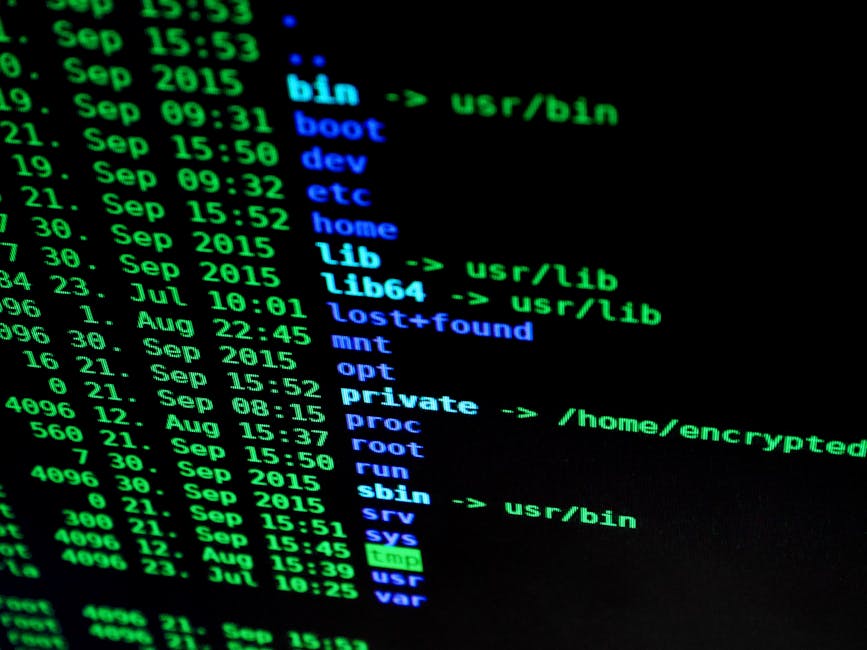
Featured image alt text: WordPress hardening deep dive shows secure permissions and ownership checks for uploads directory on a Linux server.